你好,我是月影。
前面我们介绍的很多技术,都是需要通过调用大模型服务,通过 API 获取生成内容。业务本身的 AI 推理操作实际上是运行在封装好的 LLMs 服务之上的。
这一节课,我们将涉及部分更底层的技术 —— Transformers。
实际上,早在2022年底,开源社区开发者 Xenova(Joshua Lochner)就创建了 Transformers.js 项目,旨在将 Hugging Face 的 Transformers Python 库的功能迁移到 JavaScript 环境中,实现前端本地推理。
@xenova/transforms 库的第一个版本发布于 2022 年 12 月 27 日,此后该项目得到了 Hugging Face 的支持,并在其组织下进行维护和更新。
到 2024 年 10 月,最新的 v3 版本(包名变更为@huggingface/transformers)发布,该版本引入对 WebGPU 的支持,利用浏览器的 GPU 进行高性能计算,性能比 WebAssembly 快了 100 倍。
目前,Transformers.js 支持超过 120 种模型架构,包括 GPT、BERT、T5、Phi-3、Gemma、LLaVa、Moondream、Florence-2、MusicGen 等,涵盖自然语言处理、计算机视觉、音频处理等多个领域。
在这一节课里,我们通过一些实战例子来了解 Transformers.js 的常见用法。
使用 Transforms.js 处理文本内容
第一个例子,我们实现一个网页应用,让 Transformers.js 使用 Hugging Face 上的开源模型来处理文本,做一个能够分析用户对产品和服务评论中的情感的小应用。
初始化项目并安装依赖
首先我们在 Trae IDE 下初始化一个 Vue3 项目。
然后安装依赖 @huggingface/transformers。
pnpm i @huggingface/transformers onnxruntime-web
安装完成后,我们安装并配置一下 unoCSS 和图标库组件,用来实现 UI 界面。
pnpm -D unocss @unocss/reset @iconify-json/lucide
之后创建 uno.config.ts。
import { defineConfig, presetUno, presetAttributify, presetIcons } from 'unocss'

export default defineConfig({
  presets: [
    presetUno(),
    presetAttributify(),
    presetIcons({
      collections: {
        heroicons: () => import('@iconify-json/heroicons/icons.json').then(i => i.default),
        lucide: () => import('@iconify-json/lucide/icons.json').then(i => i.default)
      }
    })
  ],
  theme: {
    colors: {
      primary: {
        50: '#eff6ff',
        100: '#dbeafe',
        200: '#bfdbfe',
        300: '#93c5fd',
        400: '#60a5fa',
        500: '#3b82f6',
        600: '#2563eb',
        700: '#1d4ed8',
        800: '#1e40af',
        900: '#1e3a8a'
      },
      positive: {
        50: '#fef2f2',
        100: '#fee2e2',
        200: '#fecaca',
        300: '#fca5a5',
        400: '#f87171',
        500: '#ef4444',
        600: '#dc2626',
        700: '#b91c1c',
        800: '#991b1b',
        900: '#7f1d1d'
      },
      negative: {
        50: '#f0fdf4',
        100: '#dcfce7',
        200: '#bbf7d0',
        300: '#86efac',
        400: '#4ade80',
        500: '#22c55e',
        600: '#16a34a',
        700: '#15803d',
        800: '#166534',
        900: '#14532d'
      },
      neutral: {
        50: '#f9fafb',
        100: '#f3f4f6',
        200: '#e5e7eb',
        300: '#d1d5db',
        400: '#9ca3af',
        500: '#6b7280',
        600: '#4b5563',
        700: '#374151',
        800: '#1f2937',
        900: '#111827'
      }
    }
  },
  shortcuts: {
    'btn-primary': 'px-4 py-2 bg-primary-500 hover:bg-primary-600 text-white rounded-md transition-colors duration-200 font-medium',
    'btn-secondary': 'px-4 py-2 bg-neutral-100 hover:bg-neutral-200 dark:bg-neutral-800 dark:hover:bg-neutral-700 text-neutral-900 dark:text-neutral-100 rounded-md transition-colors duration-200 font-medium',
    'card': 'bg-white dark:bg-neutral-800 rounded-lg shadow-sm border border-neutral-200 dark:border-neutral-700',
    'input-field': 'w-full px-4 py-2 border border-neutral-300 dark:border-neutral-600 rounded-md focus:ring-2 focus:ring-primary-500 focus:border-transparent bg-white dark:bg-neutral-800 text-neutral-900 dark:text-neutral-100 placeholder-neutral-500 dark:placeholder-neutral-400',
    'text-sentiment-positive': 'text-positive-500 bg-positive-50 dark:bg-positive-900/20',
    'text-sentiment-negative': 'text-negative-500 bg-negative-50 dark:bg-negative-900/20',
    'text-sentiment-neutral': 'text-neutral-500 bg-neutral-50 dark:bg-neutral-900/20'
  },
  safelist: [
    'text-sentiment-positive',
    'text-sentiment-negative',
    'text-sentiment-neutral'
  ]
})
上面这一步如果觉得太复杂,可以让 Trae 或者 Cursor 的 AI 来帮你生成。
下载和处理模型
接着我们要从 Hugging Face 上选择并下载模型。
由于 transformers.js 内置 onnxruntime-web 和 onnxruntime-node 两个运行时,但并不具备 PyTorch / TensorFlow 的运行时,所以它可以加载 ONNX 模型,不能直接处理 PyTorch 的 .bin 或 TensorFlow 的 .ckpt 格式的模型。
如果要使用非 ONNX 模型,需要把模型从 PyTorch 格式转换为 ONNX,要安装 optimum:
pip install "optimum[exporters]" onnx onnxruntime accelerate
然后在项目目录下运行 optimum-cli export 命令导出 ONNX 格式的模型:
optimum-cli export onnx \
  --model uer/roberta-base-finetuned-jd-binary-chinese \
  --task sequence-classification \
  --opset 14 \
  --sequence_length 128 \
  ./onnx_model
在这里,我们导出了开源模型 uer/roberta-base-finetuned-jd-binary-chinese, 这是在京东数据集上对中文商品评论情感做的二分类微调,它对商品评价类内容的实际情感倾向(正面/负面)有很好的识别效果。
使用 transformers.js 的时候,有两种方式。前面我们已经说了,它有两个运行时,一个是 onnxruntime-web 可以运行在纯前端的网页上,另一个是 onnxruntime-node 可运行在 Node.js 下。
到目前为止,实际上能通过 onnxruntime-web 直接运行于浏览器环境的模型还非常有限,很多模型不提供 ONNX,即使转换了,兼容浏览器运行时也有问题。而且还有一个更严重的问题,那就是通常模型文件还是比较大的,即使非常微小的模型文件大小也有超过百兆。如果我们放在浏览器上加载运行,就意味着需要下载如此大的文件到我们客户端,目前这种做法不太实际。所以,我们还是选择将模型放到 Node.js 的运行环境中去使用比较合适。
我们需要安装 server 的依赖:
pnpm i express
pnpm i -D @types/express
注意,我们要把前面下载到 ./onnx_model 的文件调整一下,把 model.onnx 文件放在 ./onnx_model/onnx 目录下,现在目录结构如下:
onnx_model
├── config.json
├── onnx
│   └── model.onnx
├── special_tokens_map.json
├── tokenizer.json
├── tokenizer_config.json
└── vocab.txt
然后我们创建 server.ts,内容如下:
import express, { Request, Response } from 'express';
import { pipeline, env } from '@huggingface/transformers';

const app = express();
app.use(express.json());

// ✅ 启用本地模型
env.allowLocalModels = true;

// ✅ 初始化模型
let sentimentPipeline: any;
const initModel = async () => {
  console.log('🔄 正在加载模型...');
  sentimentPipeline = await pipeline(
    'sentiment-analysis',
    './onnx_model',  // 指向本地的模型目录
    {
      device: "gpu",
      dtype: "fp32", // 使用 fp16 提高性能
      revision: undefined,          // 避免从 HuggingFace Hub 下载
      local_files_only: true        // 强制只使用本地文件
    }
  );
  console.log('✅ 模型加载完成!');
};

// ✅ 提供API
app.post('/api/sentiment', async (req: Request, res: Response): Promise<any> => {
  try {
    const text = req.body.text;
    if (!text) return res.status(400).json({ error: 'Missing text' });
    const result = await sentimentPipeline(text);
    res.json(result);
  } catch (err) {
    console.error(err);
    res.status(500).json({ error: 'Inference failed' });
  }
});

// ✅ 启动服务器
const PORT = process.env.PORT || 3000;
app.listen(PORT, async () => {
  console.log(`🚀 服务已启动:http://localhost:${PORT}`);
  await initModel();
});
这样我们就能将模型运行于运行 Node.js 服务端了。
我们运行 jiti server 或者 ts-node server 或者 npx tsx server ,如果没问题的话,可以看到 Node.js 服务正常启动:
akira@AkiraMacbook transforms_js_demo % jiti server.ts
🚀 服务已启动:http://localhost:3000
🔄 正在加载模型...
✅ 模型加载完成!
实现 UI 界面
接下来我们就可以准备实现前端界面。
首先配置 vite.config.ts 的 server:
  server: {
    allowedHosts: true,
    port: 4399,
    proxy: {
      '/api': {
        target: 'http://localhost:3000',
        secure: false,
        rewrite: path => path.replace(/^\/api/, ''),
      },
    },
  },
然后我们修改 App.vue,内容如下。
<template>
  <div class="min-h-screen bg-gray-50 dark:bg-gray-900 transition-colors">
    <!-- 头部 -->
    <header class="bg-white dark:bg-gray-800 shadow-sm border-b border-gray-200 dark:border-gray-700">
      <div class="max-w-4xl mx-auto px-4 py-4 flex justify-between items-center">
        <h1 class="text-2xl font-bold text-gray-900 dark:text-white">
          中文情感分析工具
        </h1>
        <button
          @click="toggleTheme"
          class="p-2 rounded-lg bg-gray-100 dark:bg-gray-700 hover:bg-gray-200 dark:hover:bg-gray-600 transition-colors"
        >
          <IconLucideSun v-if="isDark" class="w-5 h-5 text-yellow-500" />
          <IconLucideMoon v-else class="w-5 h-5 text-gray-600" />
        </button>
      </div>
    </header>

    <!-- 主内容 -->
    <main class="max-w-4xl mx-auto px-4 py-8">
      <!-- 介绍 -->
      <div class="text-center mb-8">
        <p class="text-lg text-gray-600 dark:text-gray-300 mb-4">
          基于 Transformers API 的实时中文文本情感分析
        </p>
        <div class="flex justify-center gap-4 text-sm">
          <span class="px-3 py-1 bg-green-100 dark:bg-green-900 text-green-800 dark:text-green-200 rounded-full">
            ✨ 实时分析
          </span>
          <span class="px-3 py-1 bg-blue-100 dark:bg-blue-900 text-blue-800 dark:text-blue-200 rounded-full">
            🔒 隐私保护
          </span>
          <span class="px-3 py-1 bg-purple-100 dark:bg-purple-900 text-purple-800 dark:text-purple-200 rounded-full">
            🚀 服务端处理
          </span>
        </div>
      </div>

      <!-- 分析器 -->
      <div class="bg-white dark:bg-gray-800 rounded-xl shadow-lg p-6">
        <!-- 模型状态 -->
        <div class="flex items-center justify-between mb-6">
          <h2 class="text-xl font-semibold text-gray-900 dark:text-white">
            情感分析器
          </h2>
          <div class="flex items-center gap-2">
            <div class="flex items-center gap-2">
              <div
                class="w-2 h-2 rounded-full"
                :class="{
                  'bg-green-500': modelStatus === 'ready',
                  'bg-yellow-500': modelStatus === 'loading',
                  'bg-red-500': modelStatus === 'error',
                  'bg-gray-400': modelStatus === 'idle'
                }"
              ></div>
              <span class="text-sm text-gray-600 dark:text-gray-300">
                {{ modelStatusText }}
              </span>
            </div>
          </div>
        </div>

        <!-- 文本输入 -->
        <div class="mb-6">
          <label class="block text-sm font-medium text-gray-700 dark:text-gray-300 mb-2">
            输入要分析的中文文本
          </label>
          <textarea
            v-model="inputText"
            placeholder="请输入中文文本进行情感分析..."
            class="w-full h-32 p-3 border border-gray-300 dark:border-gray-600 rounded-lg bg-white dark:bg-gray-700 text-gray-900 dark:text-white placeholder-gray-500 dark:placeholder-gray-400 focus:ring-2 focus:ring-blue-500 focus:border-transparent resize-none"
            @keydown.ctrl.enter="analyzeText"
          ></textarea>
          <div class="flex justify-between items-center mt-2">
            <span class="text-sm text-gray-500 dark:text-gray-400">
              {{ inputText.length }} 字符 | Ctrl+Enter 快速分析
            </span>
            <button
              v-if="inputText"
              @click="inputText = ''"
              class="text-sm text-gray-500 hover:text-gray-700 dark:text-gray-400 dark:hover:text-gray-200"
            >
              清空
            </button>
          </div>
        </div>

        <!-- 分析按钮 -->
        <div class="mb-6">
          <button
            @click="analyzeText"
            :disabled="!inputText.trim() || isAnalyzing"
            class="w-full py-3 px-4 bg-blue-600 hover:bg-blue-700 disabled:bg-gray-400 text-white font-medium rounded-lg transition-colors flex items-center justify-center gap-2"
          >
            <IconLucideLoader2 v-if="isAnalyzing" class="w-4 h-4 animate-spin" />
            <IconLucideBrain v-else class="w-4 h-4" />
            {{ isAnalyzing ? '分析中...' : '开始分析' }}
          </button>
        </div>

        <!-- 分析结果 -->
        <div v-if="result" class="space-y-4">
          <h3 class="text-lg font-semibold text-gray-900 dark:text-white">
            分析结果
          </h3>

          <!-- 整体情感 -->
          <div class="p-4 rounded-lg border" :class="resultBorderClass">
            <div class="flex items-center gap-3 mb-2">
              <div class="text-2xl">
                {{ result.type === 'positive' ? '😊' : result.type === 'negative' ? '😔' : '😐' }}
              </div>
              <div>
                <div class="font-semibold" :class="resultTextClass">
                  {{ result.type === 'positive' ? '正面情感' : result.type === 'negative' ? '负面情感' : '中性情感' }}
                </div>
                <div class="text-sm text-gray-600 dark:text-gray-400">
                  置信度: {{ (result.confidence * 100).toFixed(1) }}%
                </div>
              </div>
            </div>
            <div class="text-sm text-gray-600 dark:text-gray-400">
              原始标签: {{ result.label }}
            </div>
          </div>


        </div>

        <!-- 错误信息 -->
        <div v-if="error" class="p-4 bg-red-50 dark:bg-red-900/20 border border-red-200 dark:border-red-800 rounded-lg">
          <div class="flex items-center gap-2 text-red-800 dark:text-red-200">
            <IconLucideAlertCircle class="w-5 h-5" />
            <span class="font-medium">分析失败</span>
          </div>
          <p class="text-sm text-red-600 dark:text-red-300 mt-1">{{ error }}</p>
        </div>
      </div>

      <!-- 示例文本 -->
      <div class="mt-8 bg-white dark:bg-gray-800 rounded-xl shadow-lg p-6">
        <h3 class="text-lg font-semibold text-gray-900 dark:text-white mb-4">
          试试这些示例
        </h3>
        <div class="grid grid-cols-1 md:grid-cols-2 gap-4">
          <button
            v-for="example in examples"
            :key="example.text"
            @click="inputText = example.text"
            class="p-3 text-left border border-gray-200 dark:border-gray-600 rounded-lg hover:bg-gray-50 dark:hover:bg-gray-700 transition-colors"
          >
            <div class="text-sm font-medium text-gray-900 dark:text-white mb-1">
              {{ example.label }}
            </div>
            <div class="text-sm text-gray-600 dark:text-gray-400">
              {{ example.text }}
            </div>
          </button>
        </div>
      </div>
    </main>
  </div>
</template>

<script setup lang="ts">
import { ref, computed, onMounted } from 'vue'

// 图标
import IconLucideSun from '~icons/lucide/sun'
import IconLucideMoon from '~icons/lucide/moon'
import IconLucideBrain from '~icons/lucide/brain'
import IconLucideLoader2 from '~icons/lucide/loader-2'
import IconLucideAlertCircle from '~icons/lucide/alert-circle'

// 类型定义
interface SentimentResult {
  type: 'positive' | 'negative' | 'neutral'
  label: string
  confidence: number
}

// 响应式数据
const isDark = ref(false)
const inputText = ref('')
const isAnalyzing = ref(false)
const result = ref<SentimentResult | null>(null)
const error = ref('')
const modelStatus = ref<'idle' | 'loading' | 'ready' | 'error'>('ready')

// 示例文本
const examples = [
  { label: '正面示例', text: '今天天气真好,心情特别愉快!' },
  { label: '负面示例', text: '这个产品质量太差了,非常失望。' },
  { label: '中性示例', text: '今天是星期三,明天是星期四。' },
  { label: '复杂情感', text: '虽然价格有点贵,但是服务态度很好。' }
]

// 计算属性
const modelStatusText = computed(() => {
  switch (modelStatus.value) {
    case 'idle': return '未连接'
    case 'loading': return '连接中...'
    case 'ready': return '服务就绪'
    case 'error': return '连接失败'
    default: return '未知状态'
  }
})

const resultBorderClass = computed(() => {
  if (!result.value) return ''
  switch (result.value.type) {
    case 'positive': return 'border-green-200 dark:border-green-800 bg-green-50 dark:bg-green-900/20'
    case 'negative': return 'border-red-200 dark:border-red-800 bg-red-50 dark:bg-red-900/20'
    default: return 'border-gray-200 dark:border-gray-600 bg-gray-50 dark:bg-gray-700'
  }
})

const resultTextClass = computed(() => {
  if (!result.value) return ''
  switch (result.value.type) {
    case 'positive': return 'text-green-800 dark:text-green-200'
    case 'negative': return 'text-red-800 dark:text-red-200'
    default: return 'text-gray-800 dark:text-gray-200'
  }
})

// 主题切换
const toggleTheme = () => {
  isDark.value = !isDark.value
  document.documentElement.classList.toggle('dark', isDark.value)
  localStorage.setItem('theme', isDark.value ? 'dark' : 'light')
}

// 初始化主题
const initTheme = () => {
  const savedTheme = localStorage.getItem('theme')
  const prefersDark = window.matchMedia('(prefers-color-scheme: dark)').matches
  isDark.value = savedTheme === 'dark' || (!savedTheme && prefersDark)
  document.documentElement.classList.toggle('dark', isDark.value)
}

// 检查服务器状态
const checkServerStatus = async () => {
  try {
    modelStatus.value = 'loading'
    error.value = ''

    // 简单的健康检查,可以发送一个测试请求
    const response = await fetch('/api/sentiment', {
      method: 'POST',
      headers: {
        'Content-Type': 'application/json'
      },
      body: JSON.stringify({ text: '测试' })
    })

    if (response.ok) {
      modelStatus.value = 'ready'
    } else {
      throw new Error('服务器响应异常')
    }
  } catch (err) {
    console.error('服务器连接失败:', err)
    modelStatus.value = 'error'
    error.value = '无法连接到分析服务,请确保服务器正在运行'
  }
}

// 映射标签到情感类型
const mapLabelToSentiment = (label: string): 'positive' | 'negative' | 'neutral' => {
  const lowerLabel = label.toLowerCase()
  if (label === '正面' || lowerLabel.includes('positive') || lowerLabel.includes('pos') || lowerLabel === 'label_1') {
    return 'positive'
  } else if (label === '负面' || lowerLabel.includes('negative') || lowerLabel.includes('neg') || lowerLabel === 'label_0') {
    return 'negative'
  }
  return 'neutral'
}

// 分析文本
const analyzeText = async () => {
  if (!inputText.value.trim()) return

  try {
    isAnalyzing.value = true
    error.value = ''
    result.value = null

    // 调用后端 API
    const response = await fetch('/api/sentiment', {
      method: 'POST',
      headers: {
        'Content-Type': 'application/json'
      },
      body: JSON.stringify({ text: inputText.value.trim() })
    })

    if (!response.ok) {
      throw new Error(`HTTP ${response.status}: ${response.statusText}`)
    }

    const results = await response.json()
    const topResult = Array.isArray(results) ? results[0] : results

    console.log('API 响应:', results)

    // API 响应数据结构适配
    const label = topResult.label || 'unknown'
    const score = topResult.score || 0

    result.value = {
      type: mapLabelToSentiment(label),
      label: label,
      confidence: score
    }
  } catch (err) {
    console.error('分析失败:', err)
    error.value = `分析失败: ${err instanceof Error ? err.message : '未知错误'}`
  } finally {
    isAnalyzing.value = false
  }
}

// 生命周期
onMounted(() => {
  initTheme()
  checkServerStatus()
})
</script>

<style>
/* 基础样式重置 */
* {
  margin: 0;
  padding: 0;
  box-sizing: border-box;
}

body {
  font-family: -apple-system, BlinkMacSystemFont, 'Segoe UI', Roboto, sans-serif;
  line-height: 1.6;
}

/* 滚动条样式 */
::-webkit-scrollbar {
  width: 6px;
}

::-webkit-scrollbar-track {
  background: transparent;
}

::-webkit-scrollbar-thumb {
  background: #cbd5e1;
  border-radius: 3px;
}

.dark ::-webkit-scrollbar-thumb {
  background: #475569;
}

/* 动画 */
.animate-spin {
  animation: spin 1s linear infinite;
}

@keyframes spin {
  from {
    transform: rotate(0deg);
  }
  to {
    transform: rotate(360deg);
  }
}

/* 过渡效果 */
.transition-colors {
  transition: color 0.2s ease, background-color 0.2s ease, border-color 0.2s ease;
}
</style>
虽然代码比较多,但 HTML 和 CSS 主要是 UI 界面相关的,这里就展开不细讲了。我们主要来看一下 JS 的部分:
import { ref, computed, onMounted } from 'vue'

// 图标
import IconLucideSun from '~icons/lucide/sun'
import IconLucideMoon from '~icons/lucide/moon'
import IconLucideBrain from '~icons/lucide/brain'
import IconLucideLoader2 from '~icons/lucide/loader-2'
import IconLucideAlertCircle from '~icons/lucide/alert-circle'

// 类型定义
interface SentimentResult {
  type: 'positive' | 'negative' | 'neutral'
  label: string
  confidence: number
}

// 响应式数据
const isDark = ref(false)
const inputText = ref('')
const isAnalyzing = ref(false)
const result = ref<SentimentResult | null>(null)
const error = ref('')
const modelStatus = ref<'idle' | 'loading' | 'ready' | 'error'>('ready')

// 示例文本
const examples = [
  { label: '正面示例', text: '今天天气真好,心情特别愉快!' },
  { label: '负面示例', text: '这个产品质量太差了,非常失望。' },
  { label: '中性示例', text: '今天是星期三,明天是星期四。' },
  { label: '复杂情感', text: '虽然价格有点贵,但是服务态度很好。' }
]

// 计算属性
const modelStatusText = computed(() => {
  switch (modelStatus.value) {
    case 'idle': return '未连接'
    case 'loading': return '连接中...'
    case 'ready': return '服务就绪'
    case 'error': return '连接失败'
    default: return '未知状态'
  }
})

const resultBorderClass = computed(() => {
  if (!result.value) return ''
  switch (result.value.type) {
    case 'positive': return 'border-green-200 dark:border-green-800 bg-green-50 dark:bg-green-900/20'
    case 'negative': return 'border-red-200 dark:border-red-800 bg-red-50 dark:bg-red-900/20'
    default: return 'border-gray-200 dark:border-gray-600 bg-gray-50 dark:bg-gray-700'
  }
})

const resultTextClass = computed(() => {
  if (!result.value) return ''
  switch (result.value.type) {
    case 'positive': return 'text-green-800 dark:text-green-200'
    case 'negative': return 'text-red-800 dark:text-red-200'
    default: return 'text-gray-800 dark:text-gray-200'
  }
})

// 主题切换
const toggleTheme = () => {
  isDark.value = !isDark.value
  document.documentElement.classList.toggle('dark', isDark.value)
  localStorage.setItem('theme', isDark.value ? 'dark' : 'light')
}

// 初始化主题
const initTheme = () => {
  const savedTheme = localStorage.getItem('theme')
  const prefersDark = window.matchMedia('(prefers-color-scheme: dark)').matches
  isDark.value = savedTheme === 'dark' || (!savedTheme && prefersDark)
  document.documentElement.classList.toggle('dark', isDark.value)
}

// 检查服务器状态
const checkServerStatus = async () => {
  try {
    modelStatus.value = 'loading'
    error.value = ''

    // 简单的健康检查,可以发送一个测试请求
    const response = await fetch('/api/sentiment', {
      method: 'POST',
      headers: {
        'Content-Type': 'application/json'
      },
      body: JSON.stringify({ text: '测试' })
    })

    if (response.ok) {
      modelStatus.value = 'ready'
    } else {
      throw new Error('服务器响应异常')
    }
  } catch (err) {
    console.error('服务器连接失败:', err)
    modelStatus.value = 'error'
    error.value = '无法连接到分析服务,请确保服务器正在运行'
  }
}

// 映射标签到情感类型
const mapLabelToSentiment = (label: string): 'positive' | 'negative' | 'neutral' => {
  const lowerLabel = label.toLowerCase()
  if (label === '正面' || lowerLabel.includes('positive') || lowerLabel.includes('pos') || lowerLabel === 'label_1') {
    return 'positive'
  } else if (label === '负面' || lowerLabel.includes('negative') || lowerLabel.includes('neg') || lowerLabel === 'label_0') {
    return 'negative'
  }
  return 'neutral'
}

// 分析文本
const analyzeText = async () => {
  if (!inputText.value.trim()) return

  try {
    isAnalyzing.value = true
    error.value = ''
    result.value = null

    // 调用后端 API
    const response = await fetch('/api/sentiment', {
      method: 'POST',
      headers: {
        'Content-Type': 'application/json'
      },
      body: JSON.stringify({ text: inputText.value.trim() })
    })

    if (!response.ok) {
      throw new Error(`HTTP ${response.status}: ${response.statusText}`)
    }

    const results = await response.json()
    const topResult = Array.isArray(results) ? results[0] : results

    console.log('API 响应:', results)

    // API 响应数据结构适配
    const label = topResult.label || 'unknown'
    const score = topResult.score || 0

    result.value = {
      type: mapLabelToSentiment(label),
      label: label,
      confidence: score
    }
  } catch (err) {
    console.error('分析失败:', err)
    error.value = `分析失败: ${err instanceof Error ? err.message : '未知错误'}`
  } finally {
    isAnalyzing.value = false
  }
}

// 生命周期
onMounted(() => {
  initTheme()
  checkServerStatus()
})
在上面的代码里,最核心的部分其实就是通过调用 Node.js 的 API 来分析文本。
// 分析文本
const analyzeText = async () => {
  if (!inputText.value.trim()) return

  try {
    isAnalyzing.value = true
    error.value = ''
    result.value = null

    // 调用后端 API
    const response = await fetch('/api/sentiment', {
      method: 'POST',
      headers: {
        'Content-Type': 'application/json'
      },
      body: JSON.stringify({ text: inputText.value.trim() })
    })

    if (!response.ok) {
      throw new Error(`HTTP ${response.status}: ${response.statusText}`)
    }

    const results = await response.json()
    const topResult = Array.isArray(results) ? results[0] : results

    console.log('API 响应:', results)

    // API 响应数据结构适配
    const label = topResult.label || 'unknown'
    const score = topResult.score || 0

    result.value = {
      type: mapLabelToSentiment(label),
      label: label,
      confidence: score
    }
  } catch (err) {
    console.error('分析失败:', err)
    error.value = `分析失败: ${err instanceof Error ? err.message : '未知错误'}`
  } finally {
    isAnalyzing.value = false
  }
}
在这里,我们调用了 server.ts 的 /api/sentiment,而在 server.ts 中,我们通过 sentimentPipeline 来调用模型。
// ✅ 提供API
app.post('/api/sentiment', async (req: Request, res: Response): Promise<any> => {
  try {
    const text = req.body.text;
    if (!text) return res.status(400).json({ error: 'Missing text' });
    const result = await sentimentPipeline(text);
    res.json(result);
  } catch (err) {
    console.error(err);
    res.status(500).json({ error: 'Inference failed' });
  }
});
而模型在启动 server 的时候就完成了初始化:
// ✅ 初始化模型
let sentimentPipeline: any;
const initModel = async () => {
  console.log('🔄 正在加载模型...');
  sentimentPipeline = await pipeline(
    'sentiment-analysis',
    './onnx_model',  // 指向本地的模型目录
    {
      device: "gpu",
      dtype: "fp32", // 使用 fp16 提高性能
      revision: undefined,          // 避免从 HuggingFace Hub 下载
      local_files_only: true        // 强制只使用本地文件
    }
  );
  console.log('✅ 模型加载完成!');
};
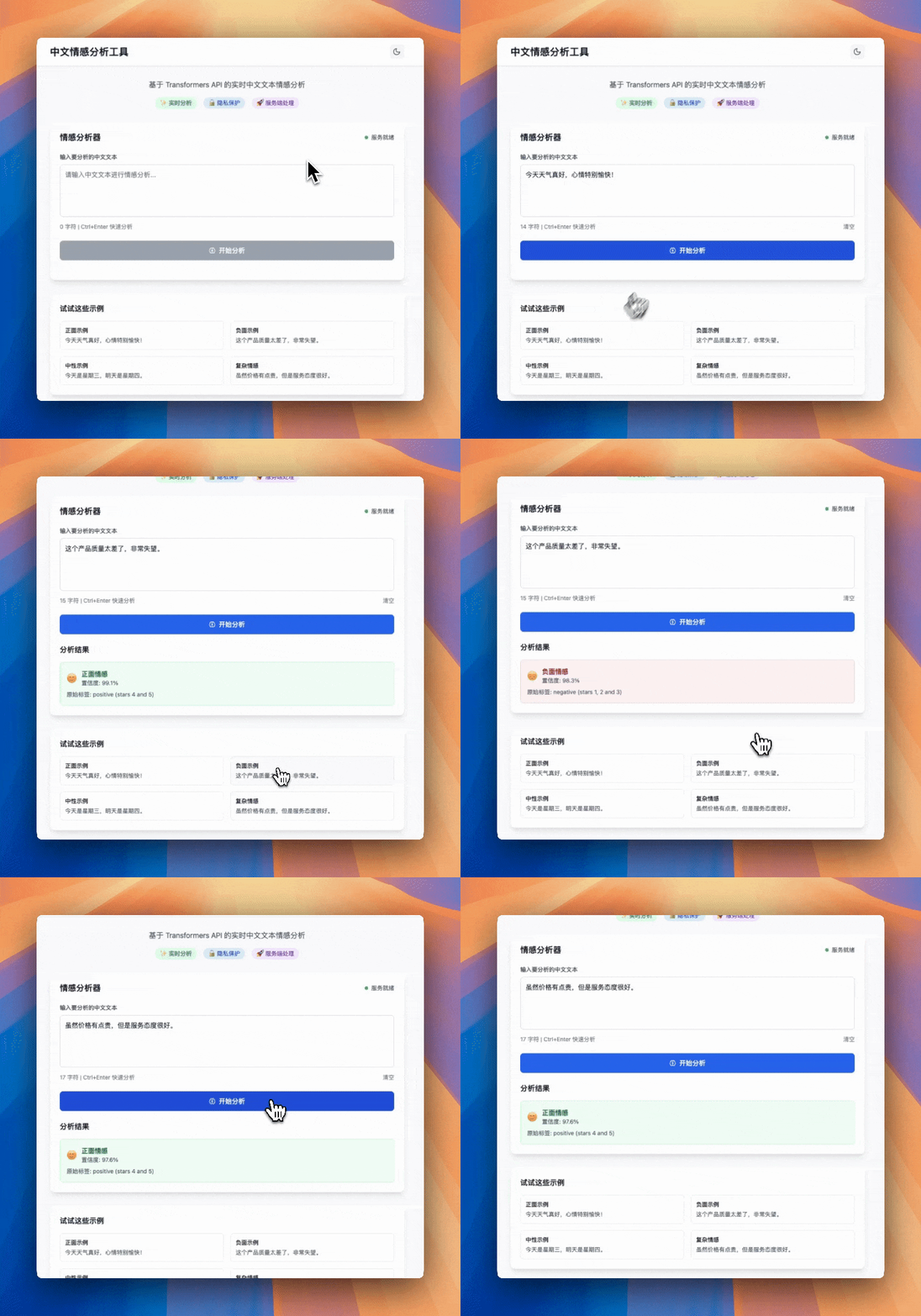
这样呢,我们就完成了整个应用的主体,我们可以启动 server 和 vite,看一下具体的效果。
运行结果如下:
要点总结
在这一节课,我们简单介绍了比较底层的 Transformers,它是生成式 AI 的基本架构。通过 transformers.js,我们可以用 JavaScript 来操作大模型基座,从而完成我们的应用。
标准的做法是,在开源社区寻找适合的模型,将它转换为 transformers.js 可以支持的 ONNX 格式,然后通过 Node Server 或者浏览器端加载调用(这里应优先考虑 NodeJS)。这样我们的业务就可以调用这些底层大模型基座来完成工作了。
Transforms.js 是前端在 AI 时代发展的前沿方向之一,它的核心使命是把 Hugging Face transformers 的能力搬到前端,让我们在浏览器或 Node.js 里直接加载模型、做推理,而不再需要 Python 和后端服务器。
这意味着:
-
用户输入完全在本地处理不上传到云端,从而更加安全和保护隐私。
-
不需要给模型推理额外搭服务器,从而降低部署成本。
-
模型通信不依赖网络,甚至可以做离线AI,离线网页就能用 AI 模型。
当然 Transforms.js 想要真正达到商用,还有很多困难需要克服,比如 runtime 的稳定性和兼容性、支持更多模型格式,解决在浏览器端模型大小太大、下载慢的问题等等。
但不管怎么样,我们可以期待一下,在火速发展的 AI 时代,总是拥抱变化的前端必然不会缺席,相信未来 Transforms.js 会更加成熟,成为前端在后 AI 时代不可缺少的关键应用技术。
让我们拭目以待吧。
课后练习
这节课里,我们实现了在 Node 下运行 Transformers.js,有些模型其实是可以直接运行在前端页面上的,甚至都不需要 Node.js Server。你可以试一下,找一两个能运行在 Web 端的模型,实现一些具体功能,然后将思考和收获分享到评论区。
本节课的具体代码详见 GitHub 代码仓库。
精选留言