你好,我是朱涛。不知不觉间,咱们的课程就已经进行一半了,我们已经学完很多内容:
- 基础篇,我们学完了所有Kotlin基础语法和重要特性。
- 加餐篇,我们学习了Kotlin编程的5大编程思维:函数式思维、表达式思维、不变性思维、空安全思维、协程思维。
- 协程篇,我们也已经学完了所有基础的协程概念。
所以现在,是时候来一次阶段性的验收了。这次,我们一起来做一个图片处理程序,来考察一下自己对于Kotlin编程知识的理解和应用掌握情况。初始化工程的代码在这里GitHub,你可以像往常那样,将其clone下来,然后用IntelliJ打开即可。
我们仍然会分为两个版本1.0、2.0,不过,这一次要轮到你亲自动手写代码了!
1.0版本:处理本地图片
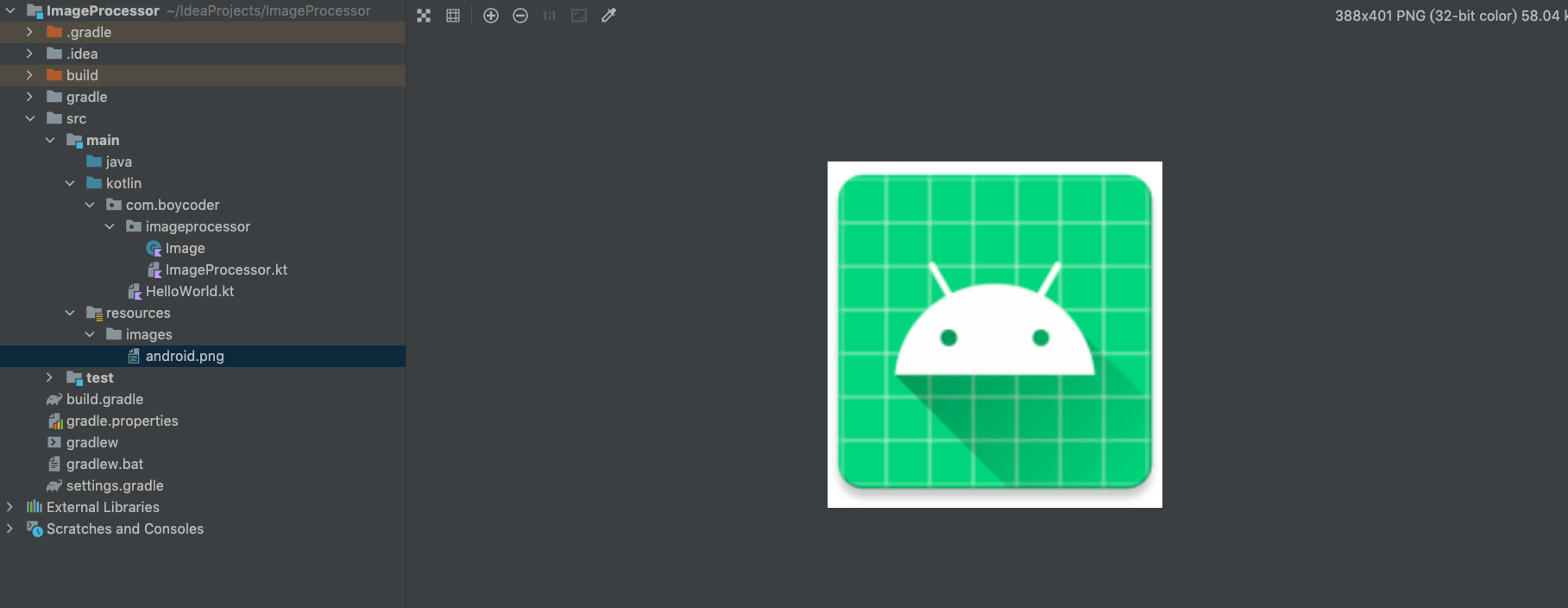
当你将初始化工程打开以后,你会发现“src/main/resources/images/”这个目录下有一张图片:android.png,它就是我们要处理的图片对象。
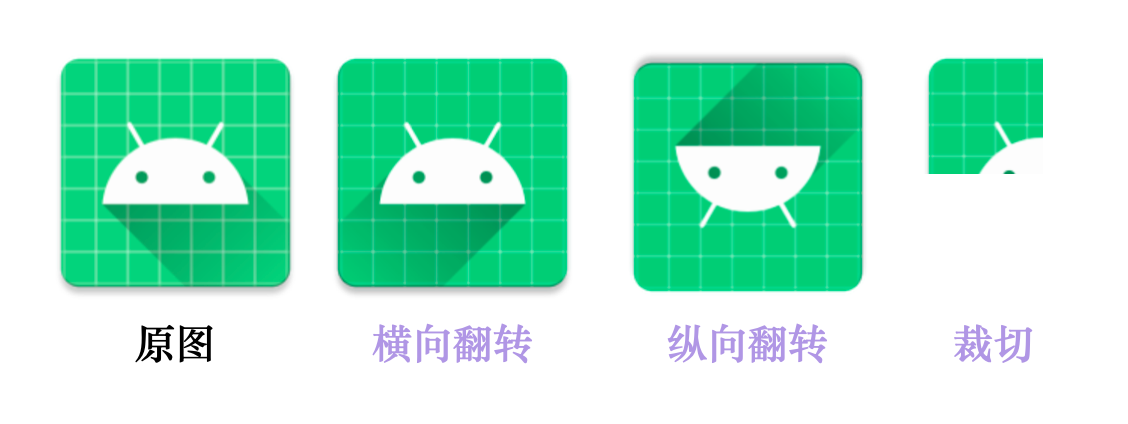
一般来说,我们想要处理图片,会第一时间想到Photoshop,但其实简单的图片处理任务,我们完全可以通过代码来实现,比如图片横向翻转、图片纵向翻转、图片裁切。
关于图片的底层定义,Java SDK已经提供了很好的支持,我们在Kotlin代码当中可以直接使用相关的类。为了防止你对JDK不熟悉,我在初始化工程当中,已经为你做好了前期准备工作:
class Image(private val pixels: Array<Array<Color>>) {

    fun height(): Int {
        return pixels.size
    }

    fun width(): Int {
        return pixels[0].size
    }

    /**
     * 底层不处理越界
     */
    fun getPixel(y: Int, x: Int): Color {
        return pixels[y][x]
    }
}
这是我定义的一个Image类,它的作用就是封装图片的内存对象。我们都知道,图片的本质是一堆像素点(Pixel),而每个像素点,都可以用RGB来表示,这里我们用Java SDK当中的Color来表示。
当我们把图片放大到足够倍数的时候,我们就可以看到其中的正方形像素点了。
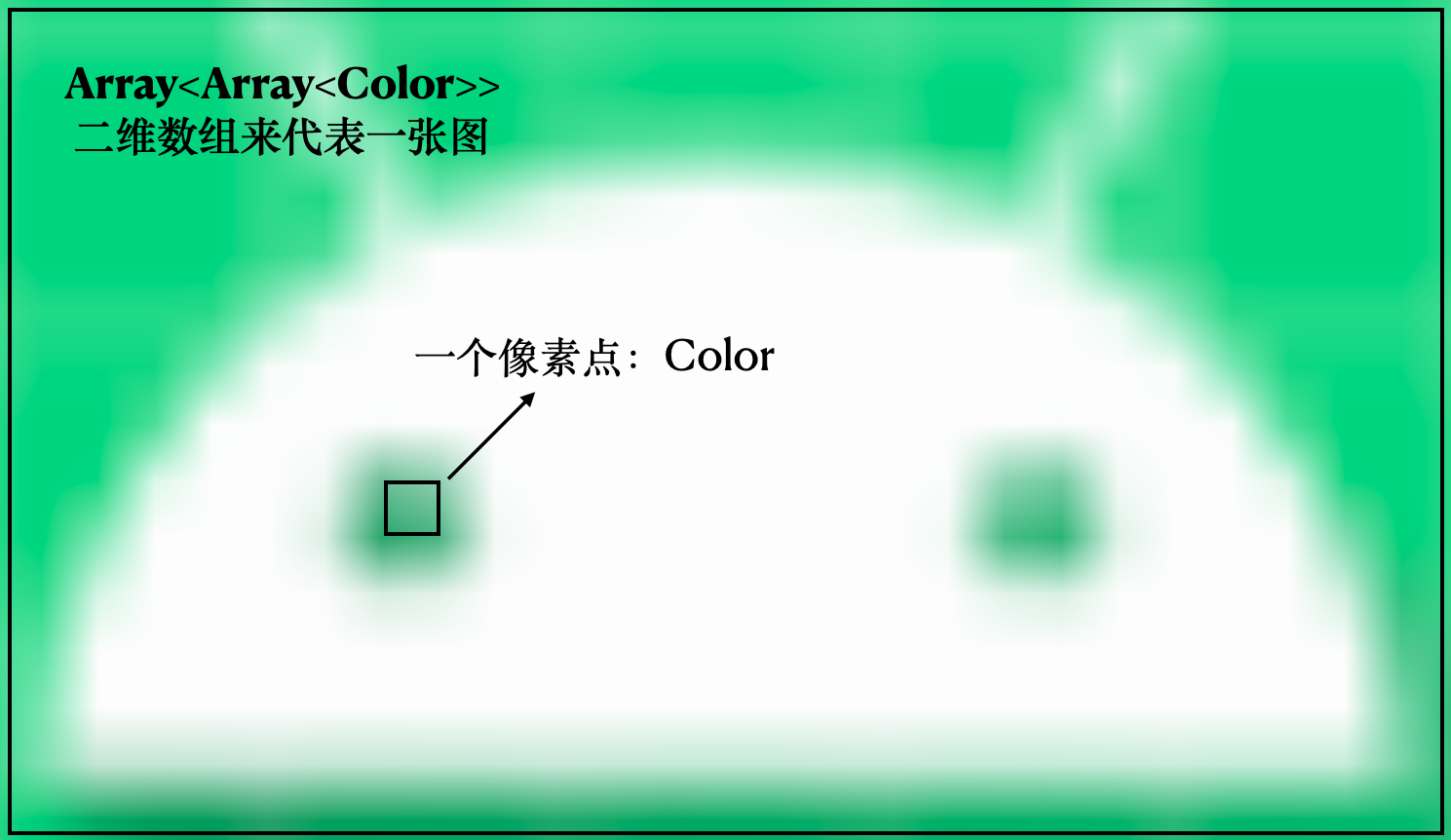
所以,最终我们就可以用“Array<Array<Color>>”这样一个二维数组来表示一张图片。
另外,从本地加载图片到内存的代码,我也帮你写好了:
const val BASE_PATH = "./src/main/resources/images/"

fun main() {
    val image = loadImage(File("${BASE_PATH}android.png"))
    println("Width = ${image.width()};Height = ${image.height()}")
}

/**
 * 加载本地图片到内存中
 */
fun loadImage(imageFile: File) =
    ImageIO.read(imageFile)
        .let {
            Array(it.height) { y ->
                Array(it.width) { x ->
                    Color(it.getRGB(x, y))
                }
            }
        }.let {
            Image(it)
        }
那么,唯一需要你做的,就是实现这几个函数的功能:图片横向翻转、图片纵向翻转、图片裁切。
/**
 * 横向翻转图片
 * 待实现
 */
fun Image.flipHorizontal(): Image = TODO()

/**
 * 纵向翻转图片
 * 待实现
 */
fun Image.flipVertical(): Image = TODO()

/**
 * 图片裁切
 * 待实现
 */
fun Image.crop(startY: Int, startX: Int, width: Int, height: Int): Image = TODO()
另外,如果你有兴趣的话,还可以去实现对应的单元测试代码:
class TestImageProcessor {

    /**
     * 待实现的单元测试
     */
    @Test
    fun testFlipHorizontal() {

    }

    /**
     * 待实现的单元测试
     */
    @Test
    fun testFlipVertical() {

    }

    /**
     * 待实现的单元测试
     */
    @Test
    fun testCrop() {

    }
}
这样一来,我们1.0版本的代码就算完成了。不过,我们还没用上协程的知识啊!
请看2.0版本。
2.0版本:增加图片下载功能
在上个版本中,我们的代码仅支持本地图片的处理,但有的时候,我们想要处理网络上的图片该怎么办呢?所以这时候,我们可以增加一个下载网络图片的功能。
这个版本,你只需要实现一个函数:
/**
 * 挂起函数,以http的方式下载图片,保存到本地
 * 待实现
 */
suspend fun downloadImage(url: String, outputFile: File): Boolean = TODO()
需要注意的是,由于下载网络图片比较耗时,我们需要将其定义成一个挂起函数,这样一来,我们后续在使用它的时候就可以更得心应手了。
fun main() = runBlocking {
    // 不一定非要下载我提供的链接
    val url = "https://raw.githubusercontent.com/chaxiu/ImageProcessor/main/src/main/resources/images/android.png"
    val path = "${BASE_PATH}downloaded.png"

    // 调用挂起函数
    downloadImage(url, File(path))

    val image = loadImage(File(path))
    println("Width = ${image.width()};Height = ${image.height()}")
}
在上面的代码中,我是以“https://raw.githubusercontent.com/chaxiu/ImageProcessor/main/src/main/resources/images/android.png” 这个链接为例,这是一个HTTPS的链接,你在实际开发的时候,也可以随便去找一个普通的HTTP图片链接,这样就不必处理SSL的问题了。

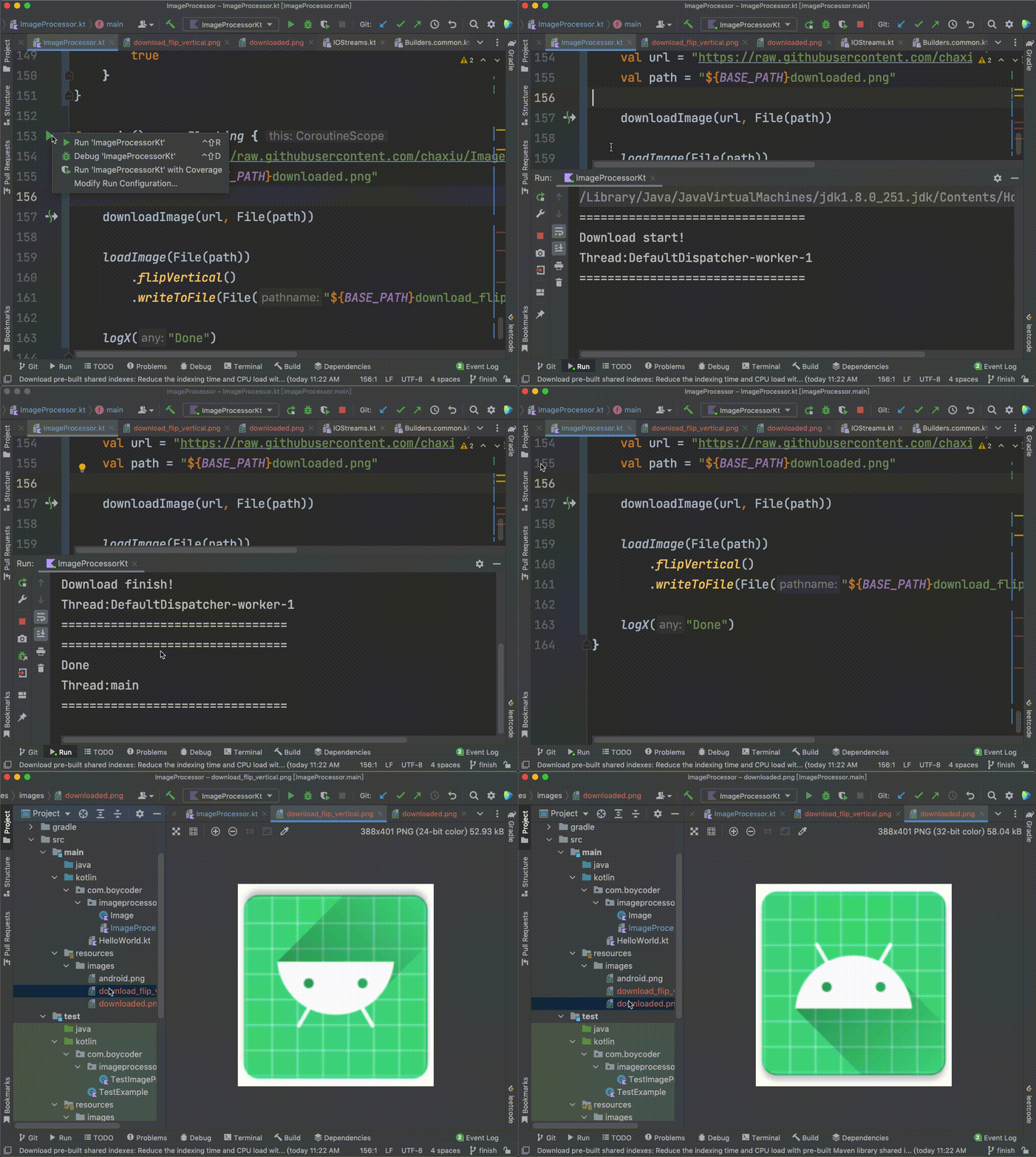
程序实际运行效果会是这样的:
在下节课里,我会给出我的代码参考,不过在看我的代码之前,记得先要自己动手啊。
其实,以我们这个工程为基础,再加上一些图形学算法,我们完全可以做出Photoshop当中的一些高级功能,比如图片缩放、图片参数调节、图片滤镜、抠像,甚至图片识别,等等。如果你本身就有图形学方面的知识储备,也欢迎你在此基础上实现更复杂的功能!
好了,我们下节课再见!
精选留言
2022-03-01 14:57:43
有同样问题的同学可以参考一下。
2022-02-27 22:24:35
fun getHorArray(x: Int): Array<Color> {
return pixels[x]
}
////
fun Image.flipHorizontal(): Image {
for (i in (0 until this.height())) {
this.getHorArray(i).reverse()
}
return this
}
fun Image.flipVertical(): Image {
this.pixels.reverse()
return this
}
fun Image.crop(startY: Int, startX: Int, width: Int, height: Int): Image {
return Array(width - startY) { y ->
Array(height - startX) { x ->
Color(this.getPixel(x, y).rgb)
}
}.let {
Image(it)
}
}
2022-03-06 17:16:39
File(BASE_PATH).mkdirs()
downloadFile(URL, getPathFile("origin"))
.loadImage()
.also { it.flipVertical().writeToFile(getPathFile("vertical")) }
.also { it.flipHorizontal().writeToFile(getPathFile("horizontal")) }
.also { it.crop(0, 0, 100, 50).writeToFile(getPathFile("crop")) }
delay(10L)
}
2022-02-25 15:17:00
private val client = OkHttpClient.Builder()
.build()
/**
* 挂起函数,以http的方式下载图片,保存到本地
*/
suspend fun downloadImage(url: String, outputFile: File): Boolean = suspendCoroutine { con ->
val request = Request.Builder()
.url(url)
.get()
.build()
client.newCall(request)
.enqueue(object : Callback {
override fun onFailure(call: Call, e: IOException) {
e.printStackTrace()
con.resume(false)
}
override fun onResponse(call: Call, response: Response) {
if (response.isSuccessful) {
response.body?.bytes()?.let {
outputFile.writeBytes(it)
}
con.resume(true)
} else {
con.resume(false)
}
}
})
}
fun main() = runBlocking {
val url = "http://img.netbian.com/file/2020/1202/smallaaa773e8cc9729977037e80b19f955891606922519.jpg"
val file = File("${BASE_PATH}wallpaper.png")
val success = downloadImage(url, file)
println("Download file status is success:$success")
}
2023-01-15 19:36:41
首先自己创建一个获取图片的接口:
@GetMapping("/{name}", produces = [MediaType.IMAGE_JPEG_VALUE])
fun picture(@PathVariable name: String): ByteArray {
return pictureService.getPicture(name)
}
然后用之前的KtCall发请求:
@GET("/picture/mountain")
fun image(): KtCall<ByteArray>
suspend fun downloadImage() = runBlocking {
val deferred = async {
KtHttpProxy.create(ApiService::class.java)
.image()
.await()
}
println("still in progress")
return@runBlocking deferred.await()
}
2022-06-29 14:47:18
suspend fun downloadImage(url: String, outputFile: File): Boolean =
withContext(Dispatchers.IO) {
kotlin.runCatching {
URL(url).openStream().use {
outputFile.writeBytes(it.readAllBytes())
}
}
}.isSuccess
2022-03-12 16:34:24
// 图片处理 单测Case 较难实现,偷懒写本地肉眼看
/**
* 写到本地,方便可看效果
*/
fun Image.writeJPEG(outputFile: File): Boolean =
ImageIO.write(BufferedImage(width(), height(), BufferedImage.TYPE_INT_RGB).apply {
repeat(height) { y ->
repeat(width) { x ->
setRGB(x, y, getPixel(y, x).rgb)
}
}
}, "JPEG", outputFile)
/**
* 图片裁切
*/
fun Image.crop(startY: Int, startX: Int, width: Int, height: Int): Image =
Array(height) { y ->
Array(width) { x ->
getPixel(y + startY, x + startX)
}
}.let { Image(it) }
/**
* 横向翻转图片
*/
fun Image.flipHorizontal(): Image =
Array(height()) { y ->
Array(width()) { x ->
getPixel(y, width() - x - 1)
}
}.let { Image(it) }
/**
* 纵向翻转图片
*/
fun Image.flipVertical(): Image =
Array(height()) { y ->
Array(width()) { x ->
getPixel(height() - y - 1, x)
}
}.let { Image(it) }
/**
* 挂起函数,以http的方式下载图片,保存到本地
*/
suspend fun downloadImage(url: String, outputFile: File): Boolean =
withContext(Dispatchers.IO) {
OkHttpClient.Builder().build().run {
newCall(Request.Builder().apply {
url(url)
get()
}.build()).execute().run {
if (!isSuccessful) {
return@run false
}
return@run body?.byteStream()?.source()?.let { outputFile.sink().buffer().writeAll(it) > 0 } ?: false
}
}
}
2022-02-28 08:51:56
* 挂起函数,以http的方式下载图片,保存到本地
*/
suspend fun downloadImage(url: String, outputFile: File) = withContext(Dispatchers.IO) {
val client = OkHttpClient()
val request = Request.Builder()
.url(url)
.build()
val response = client
.newCall(request)
.execute()
var size = 0L
response.body?.byteStream()?.readAllBytes()?.let { bytes ->
outputFile.writeBytes(bytes)
size = bytes.size.toLong()
}
if (size == response.headersContentLength()) {
return@withContext true
}
return@withContext false
}
/**
* 主函数
*/
fun main() = runBlocking {
val url = "https://raw.githubusercontent.com/chaxiu/ImageProcessor/main/src/main/resources/images/android.png"
val path = "./download.png"
val success = downloadImage(url, File(path))
println(success)
val image = loadImage(File(path))
println("Width = ${image.width()};Height = ${image.height()}")
}
看到有同学使用 suspendCoroutine 函数处理,不知道和我这个方法比较有什么区别 👀